To download the evelet APK file please click on this link: https://drive.google.com/drive/folders/1o666OMkWtxaDxiOP7GMKDjWOq-wCVR1U
Step 1 : Click on the link
Step 2 : Click on the Evelet APK link
Step 3 : Choose your preferred installer
Step 4 : Dialog box will appear to install the app click on install
Step 5 : Open the application
Step 6 : Login using your credentials i.e Registered Email address and the Ticket ID based on the access email that is sent to you
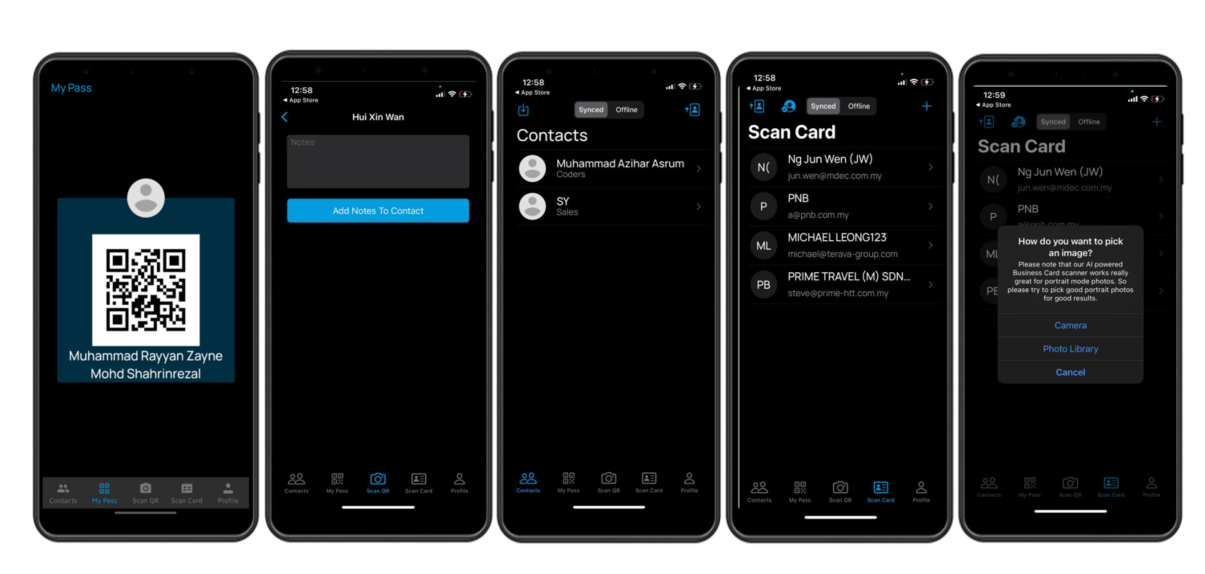
Step 7 : To Scan attendee QR click on the camera icon in the middle of the app and allow camera permission
Step 8 : Once the QR Code is scanned you can now add notes or save the attendee information as a lead
Step 9 : The Scan Card function also can be used to scan the business card of the attendee
Step 10: To Scan Card click on the plus button on top of the screen and enable camera
Step 11 : Once scanned you can add notes and save the contact in your evelet app as well
Step 12 : To download the leads that is captured in your evelet app you may click on the download button from your contact page
Step 13 : Contacts will be downloaded to your registered email directly